
User Profile Migration to new PC, new Domain, new OS – keeping all settings, data and even apps.
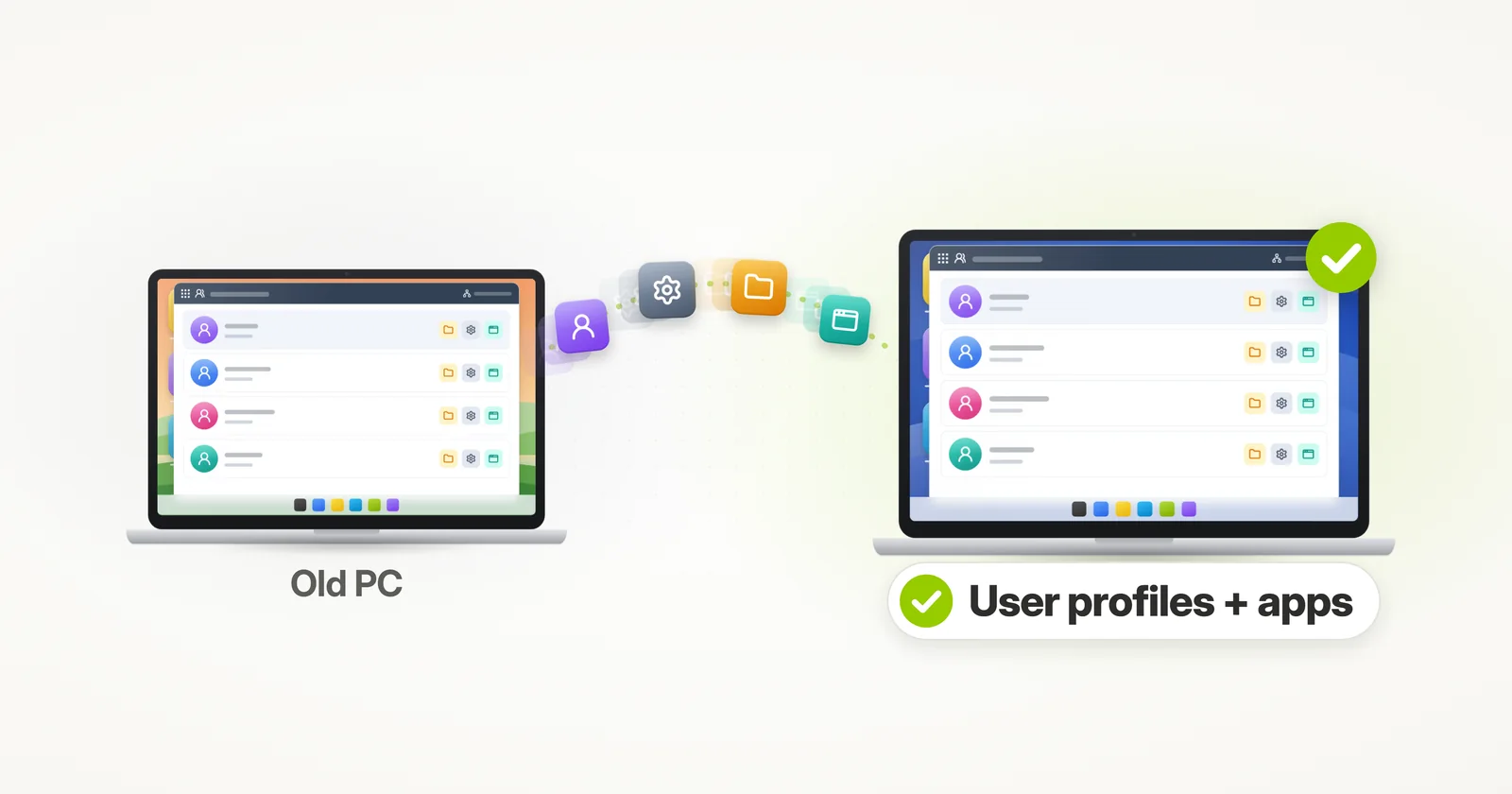
Need to migrate some domain profiles, and would rather be doing anything but that? In this tutorial, we’ll present a way to automate this whole process, and do profile migration efficiently, and completely (so that you don’t have users complaining about missing data or personalization). In addition to profiles and files, you will also be able to copy applications and their settings, should you decide to transfer those as well.
What tool can migrate user profiles in Windows 11?
Short answer: Zinstall Migration Kit Pro migrates Windows user profiles – with their files, settings and even the installed applications – to a new PC, to a new domain, from a local account to a domain account, or to Azure AD / Microsoft Entra ID, on Windows 11 and Windows 10. Microsoft’s own tool, USMT, runs from the command line and moves profiles, files and settings, but not the installed programs.1
We’ll cover several scenarios:
User profile migration in same domain
Profile migration to a different domain
Local profile to Domain profile migration
Are you looking for a way to migrate an actual Windows server, and not just end-users?
Check out our tutorial for server migration.
User profile migration in same domain
The simplest (and most common) user profile migration case is transferring Windows user profile from one computer to another, usually as part of a regular workstation refresh cycle.
This can be handled in multiple ways, depending on your requirements and existing toolset.
If the profiles are centrally managed / roaming profiles are implemented, and if you only need to transfer user data and basic personalization, all you need to do is add the new PC to the domain, log in and wait for the sync to complete.
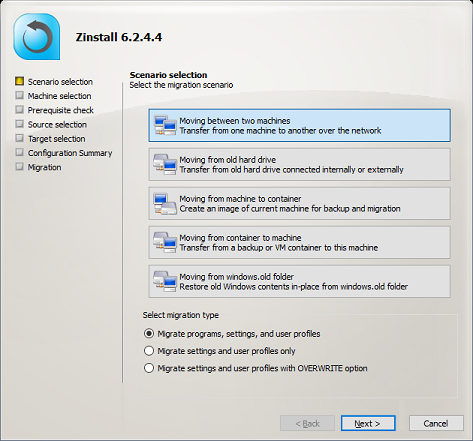
In other situations, such as when workstations are not handled centrally, when roaming profiles are not available, or when you simply require a complete migration with the end result being as faithful as possible to the user’s original system, profile migration can be achieved using Zinstall Migration Kit Pro.
It is able to transfer profiles, data, accounts, settings, applications, and pretty much everything that makes the user’s system his home. It also ensures that the transfer is complete, and no user files have been missed in the process.
How to migrate user profiles in same domain
- Join the target machine to the domain, and log in as the same user on both machines. It does not matter which user, just make sure it is the same on both. All users will be migrated in one migration pass, even if you have hundreds of them – you don’t need to do this for every single one.
- Run Zinstall Migration Kit Pro on both machines
Note: You can get the Kit here, and its user guide here. - You can do the transfer either directly between the machines (over the network), or first capture the source into a container, store it on a network share, and then deploy on the target. This last option works even if the machines are not in the same physical location, or if you are doing an in-place switch on the same physical machine.
- If you do NOT want to transfer programs, and are only interested in a profile transfer, switch the radio button on the main screen to “profile and settings only” mode
- If you’d like to select exactly what you want to transfer, press the Advanced menu. If you just want to transfer everything, you don’t need to go to the Advanced menu.
- Press “Go” on the new computer to start the transfer
- The transfer will take a while (depending on how much data you have to transfer), and report to you when done.
Note that you can also use the Kit in a command-line mode, which is useful in SCCM and other management tools integration. See “Command Line Execution” in the user guide.
That’s it! The profile contents are transferred to the other workstation – and the migration is complete.
Profile migration to a different domain
When the goal is to move users to a new domain, the main issue is that old domain SIDs are not recognized by the new domain. This means that even if you have a way to copy the profiles over, they still won’t be accessible on the new domain.
The good news is that Zinstall Migration Kit Pro can automate most of such cross-domain migration (although not all of it). Using the product, you will be able to migrate user profiles from one domain to another, and still keep user files, settings and even applications intact.
The caveat in a cross-domain transfer is that you will not only need to join the target to the new domain, but also log in as the specific user you are transferring, in each domain. See instructions below.
This process does not disrupt the profile SIDs, and transfers settings in a way that is identical to a human operator manually transferring data and reconfiguring settings (although, unlike a human, it covers everything, and does not have to be “familiar” with a specific application in order to transfer its settings or even the application itself). This part also ensures that the new domain is not “trashed” with remnants of the old one.
The transfer works in a similar way as the regular migration instructions. The only difference is that you have to login as the original, old domain user (OLD-DOMAIN\USER) on the source machine, and as the replacement, new domain user (NEW-DOMAIN\USER) on the target machine. For more detailed instructions, see profile migration to different domain.
It also works even when you are switching to a new domain on the same PC. See instructions below, or a more detailed guide on in-place switch to a new domain.
Local Profile to Domain Profile migration
The environment is a tangled mess of unmanaged, standalone workstations with local user accounts, and you have been chosen to untangle it and build a proper managed domain environment? That’s not going to be easy, but at least you can migrate the profiles without too much effort.
Migration Kit Pro can migrate local user profiles to domain profiles in the same way as cross-domain migration above.
Login as the local user on source, login as the domain user on target, and perform the migration (it also works in-place). See more details in local to domain migration guide.
What does Microsoft’s USMT migrate, and what does it leave behind?
USMT, Microsoft’s User State Migration Tool, moves user accounts, user files, Windows settings and the settings of some applications. It does not move the applications themselves, so every program has to be installed on the new PC before you restore.2 It ships in the Windows ADK and runs from the command line (ScanState captures, LoadState restores), which suits large scripted deployments.1
How do I migrate a user profile to a new computer?
Join the new computer to the domain, run Migration Kit Pro on both computers, log in as the same user on both, and press Go on the new one. All of the users come over in one pass, with their files, settings and, if you want them, their applications – see the steps above.
Can I migrate a local profile to Azure AD (Microsoft Entra ID)?
Yes. Migration Kit Pro migrates a local user profile to an Azure AD / Microsoft Entra ID account, on the same PC or from one computer to another, keeping the user’s files and settings. Microsoft’s USMT doesn’t support Entra-joined devices.3 See how to migrate local profiles to Azure AD.
Can I migrate profiles from a Windows 10 PC to a new Windows 11 PC?
Yes. Migration Kit Pro migrates user profiles from Windows 10, or an older Windows such as Windows 7, to Windows 11, as well as between two PCs on the same Windows version, and brings the applications along if you want them. Windows 10 support ended on October 14, 2025, which is why many of these migrations happen now.4
Take the headache out of user profile migration.
(or contact us for more info and volume discounts).
Video tutorial – user profile migration to a new PC
Sources
1. Microsoft Learn: User State Migration Tool (USMT) overview, updated March 2025
2. Microsoft Learn: What does USMT migrate?, updated January 2025
3. Microsoft Learn: USMT requirements, updated January 2025
4. Microsoft Support: Windows 10 support has ended on October 14, 2025, updated June 2026
guaranteeAny PC, any Windows Buy now