Transfer everything from old computer to new computer with Windows 11
Transfer programs and files to new computer
Transfer files from one computer to another
Research data: Windows and migration statistics
Transfer Microsoft Office to new computer
Restore programs and files from a broken or dead computer
Transfer directly from an old hard drive
Transfer to new computer using a USB hard drive
Corporate Windows 11 migration
User Profile Migration to new PC / new domain
How To Migrate Local Profiles to Azure AD
Migration to Server 2019 / 2016
Transfer everything from old computer to new computer with Windows 11
Transfer programs and files to new computer
Transfer files from one computer to another
Research data: Windows and migration statistics
Transfer Microsoft Office to new computer
Restore programs and files from a broken or dead computer
Transfer directly from an old hard drive
Transfer to new computer using a USB hard drive
Corporate Windows 11 migration
User Profile Migration to new PC / new domain
How To Migrate Local Profiles to Azure AD
Migration to Server 2019 / 2016
Transfer programs and files to new computer
Transfer files from one computer to another
Transfer Microsoft Office to new computer
Restore programs and files from a broken or dead computer
Transfer directly from an old hard drive
Transfer to new computer using a USB hard drive
Move To New PC - Compare Options
Migration Kit Pro - Advanced Transfer
Transfer programs and files to new computer
Transfer files from one computer to another
Transfer Microsoft Office to new computer
Restore programs and files from a broken or dead computer
Transfer directly from an old hard drive
Transfer to new computer using a USB hard drive

Updated November 2026 · 4 minute read
How to transfer QuickBooks to a new computer with Windows 11
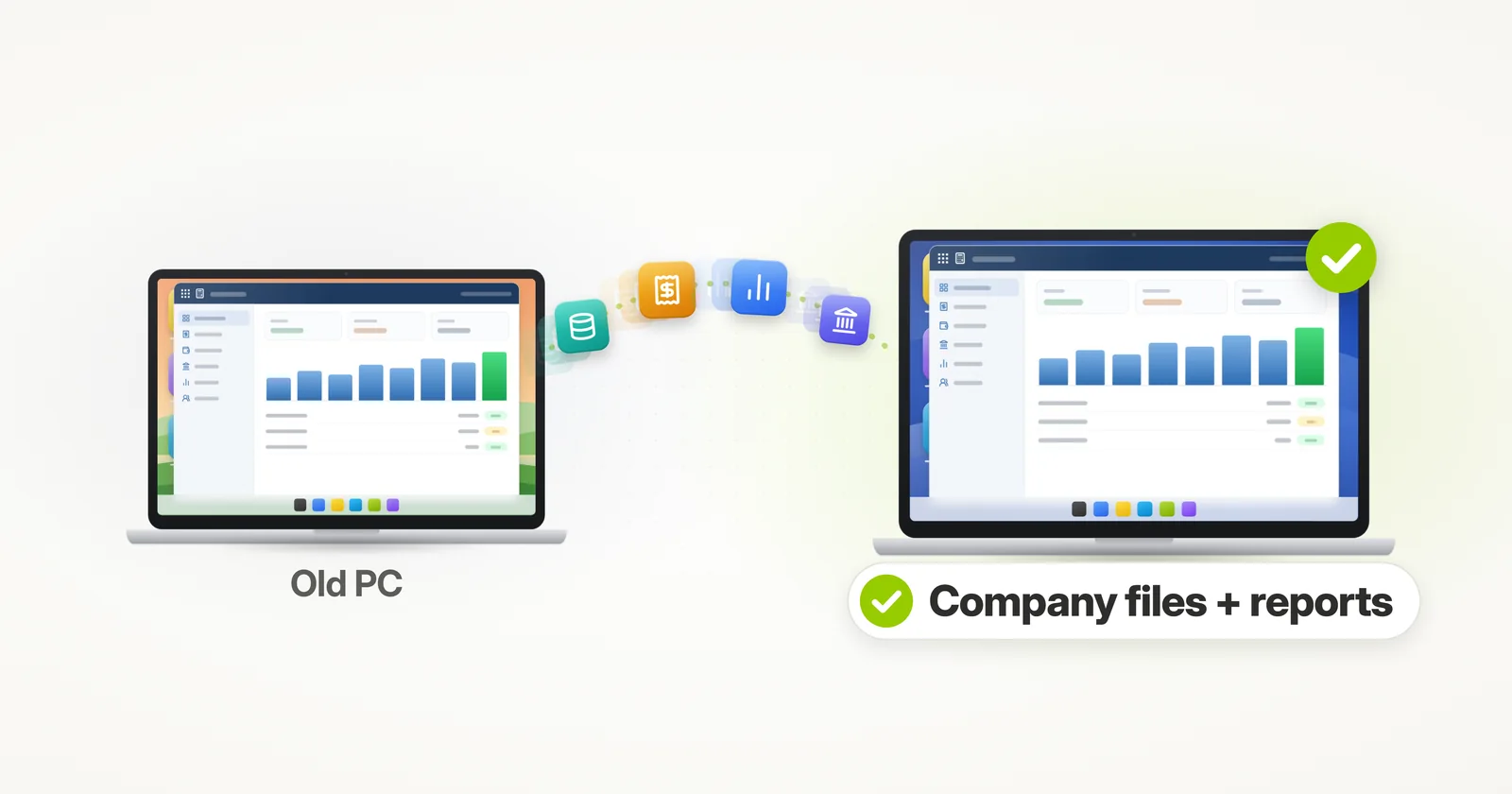
In this article, we’ll see how to transfer QuickBooks Desktop (along with other programs) from one computer to another, including reports, company files, .QBM and .QBB files, transactions, data and everything else you need for it to function just as on the old machine.
There are two ways to do the transfer. First option is a manual reinstall. In order to do that, you will need to download and install a new copy of QuickBooks on the new computer, with your license and product numbers at hand.1 Then, you’ll need to move your company file (the .QBW file, usually as a backup that you restore on the new computer)2, and find and copy your reports, your settings and configurations. Intuit’s Migrator Tool automates part of this for QuickBooks Desktop 2018 or newer: it installs QuickBooks again and copies up to three recent company files, but not a multi-user setup, your payroll setup or your other programs.3 Of course, there is a better way.
In this tutorial, we’ll learn how to transfer QuickBooks from one computer to another, automatically – using Zinstall WinWin – and copy QuickBooks software, data, reports, settings from the old laptop or desktop to the new one. This tutorial works for Windows 11, Windows 10, Windows 7, 8/8.1, Vista and XP. For example, you can use this to transfer QuickBooks and your other programs and files from a Windows 10 Dell to a Windows 11 Lenovo, or any other combination.
How do I move QuickBooks Desktop to a new computer?
Short answer: Zinstall WinWin transfers QuickBooks Desktop to the new computer already installed, with its company files, reports and settings – no download or reinstall, and it moves older versions that Intuit’s Migrator doesn’t cover. Intuit’s own ways install QuickBooks again on the new computer and then move the company file, by hand or with its Migrator Tool.3
Let’s see how the transfer is done.
How to transfer QuickBooks from one computer to another
- Download and run Zinstall WinWin on both computers (you can get WinWin here)
- You don’t need to do any configurations for the computers to connect – it’s automatic.
- If the computers are already connect to same router, same Internet connection, or same wireless connection, you don’t need anything else.
- If the computers are not connected at all, connect them with a network / Ethernet cable.
- If you’d like to select which applications and files you want to transfer, press the Advanced menu. If you just want to transfer everything, you don’t need to go to the Advanced menu. QuickBooks will be transferred automatically.
- Press “Go” on the new computer to start the transfer
- The transfer will take a while (depending on how much data you have to transfer), and report to you when done.
That’s it! You now have QuickBooks, with all of your data and other programs, on your new computer.
Will QuickBooks work on the new computer without reinstalling it?
Yes. Zinstall WinWin moves QuickBooks Desktop over already installed, so there is nothing to download or reinstall, and your company files and settings are where QuickBooks expects them. As after any move to a new computer, QuickBooks may ask you to register it again, so keep your license and product numbers at hand.3 If you use payroll, sign in to it again and download the latest tax table.2
Can I move an older version of QuickBooks, like QuickBooks 2012, to Windows 11?
Zinstall WinWin moves older versions too: QuickBooks comes over installed, with its company files. Whether an old version runs well on Windows 11 is up to QuickBooks itself. Intuit lists Windows 11 only for recent versions4, and a very old version may not run on it, or may not be able to activate again. If it ran on your old Windows 11, it will run on the new one.
Can I move only QuickBooks and leave my other programs behind?
Yes. Before you press Go, open the Advanced menu and choose which applications to transfer: keep QuickBooks and uncheck the rest. QuickBooks comes over with its data and settings.
Do my QuickBooks company files come over with the program?
Yes. Your company files (.QBW), backups (.QBB), portable files (.QBM), reports, templates and settings come over with QuickBooks, in the same places, so QuickBooks opens your company file just as it did on the old computer. If your company file lives on a server for multi-user mode, see the QuickBooks server migration guide.
Will QuickBooks move from a Windows 7 PC to a new Windows 11 PC?
Yes. Zinstall WinWin goes from Windows 7 (or even XP) straight to Windows 11, with no upgrade of the old computer first, and QuickBooks comes over the same way. Once it is on Windows 11, the version question above applies.
Do I need to move QuickBooks Online?
No. QuickBooks Online runs in the cloud, so there is nothing to install or move: sign in from the new computer’s browser.5 This page is about QuickBooks Desktop, the version installed on your computer.
Ready to transfer your QuickBooks to your new computer, along with your other programs and files?
Video tutorial – how to transfer QuickBooks to a new computer
Sources
1. Intuit QuickBooks Help: Install QuickBooks Desktop, updated August 2026
2. Intuit QuickBooks Help: Move your company files to another computer, updated August 2026
3. Intuit QuickBooks Help: Move or reinstall QuickBooks Desktop to another computer, checked November 2026
4. Intuit QuickBooks Help: System requirements for QuickBooks Desktop 2024, updated August 2026
5. Intuit: What is QuickBooks & how does it work?, checked November 2026
Related Guides
guaranteeAny PC, any Windows Buy now